MacAdmin

Eighteen maintenance tools for macOS, in one native window.

MacAdmin cleans junk, finds what is filling your disk, removes apps with everything they leave behind, and keeps an eye on your Mac from the menu bar. Native, fast, and paid for once.

Get MacAdminDownload free trial

$15. Paid once. No subscription.

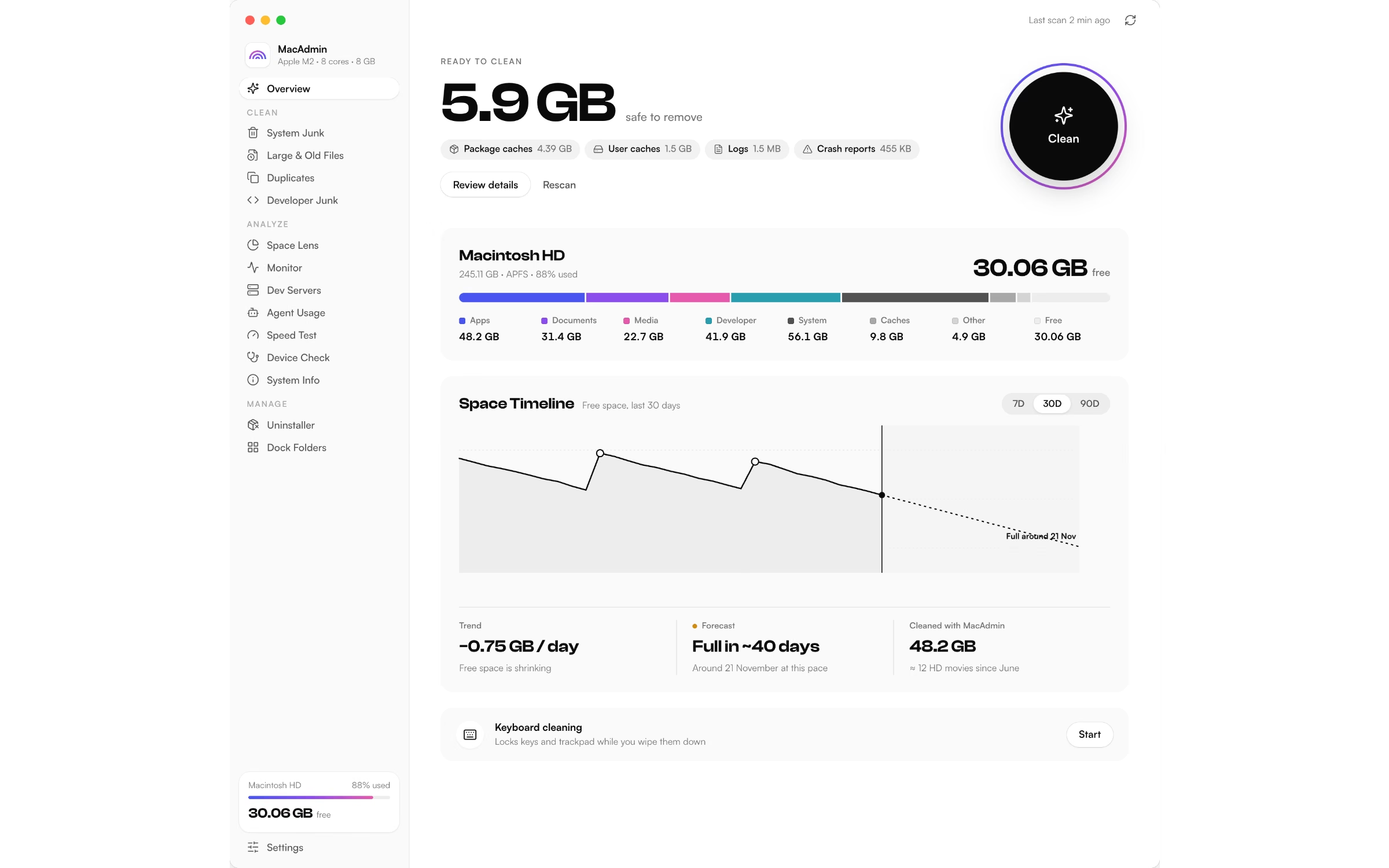
MacAdmin Smart Scan: Space back in one click. 5.9 GB ready to clean, with a disk breakdown and a 30-day space timeline.
19
tools in one native window
4
areas: Clean, Analyze, Manage, Everywhere
$15
Paid once. No subscription.
Trash
is where everything goes first

01

Clean

Get space back without guessing. Every item is listed and explained before anything is removed.

01 / 19

Smart Scan

One scan checks package caches, user caches, logs and crash reports, then shows how much is safe to remove.

  • A single Clean button, with Review details when you want to look first
  • Disk breakdown by apps, documents, media, developer files and system
  • A space timeline that forecasts when the disk fills up at your current pace
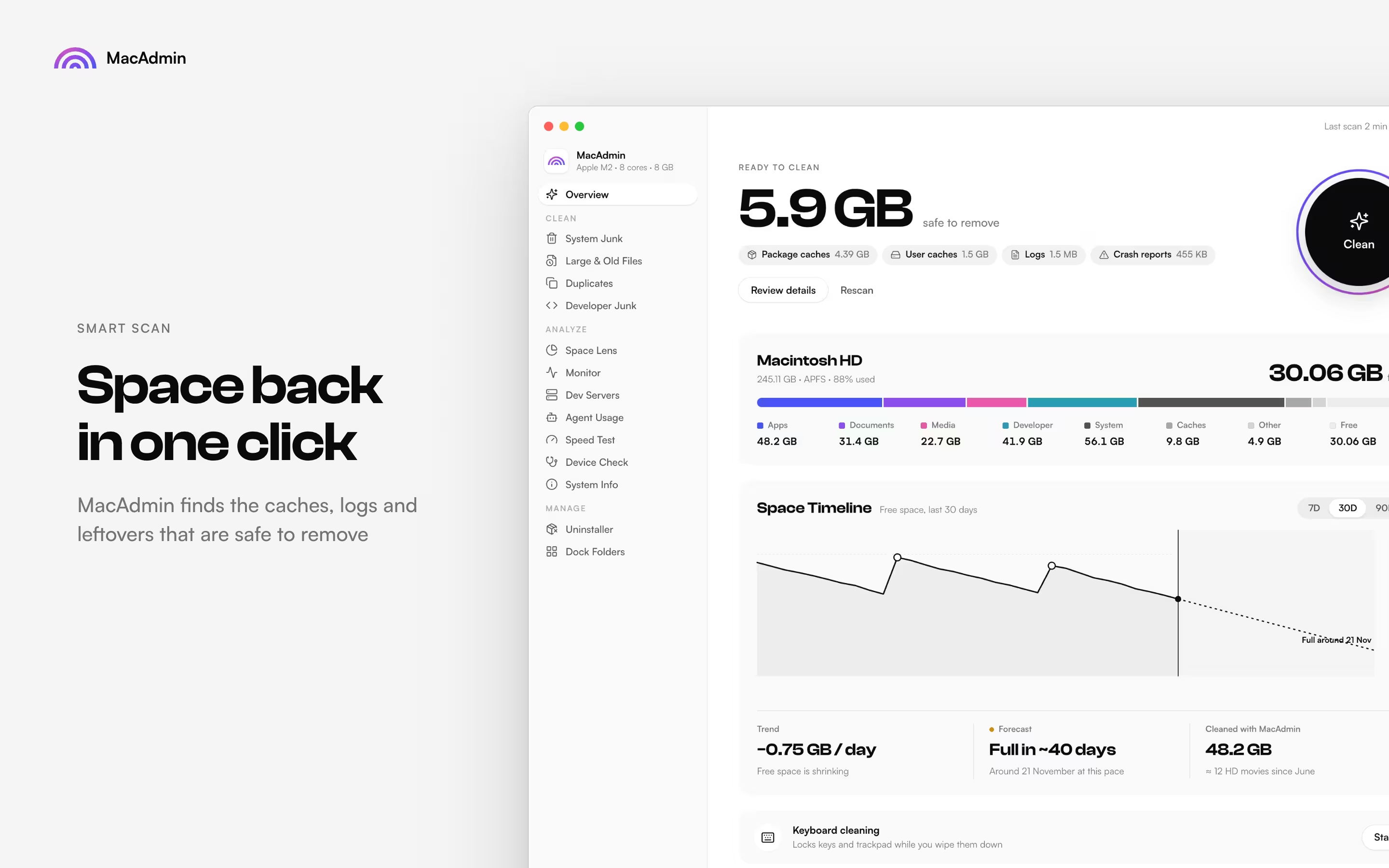
Smart Scan: Space back in one click. 5.9 GB ready to clean, with a disk breakdown and a 30-day space timeline.

02 / 19

System Junk

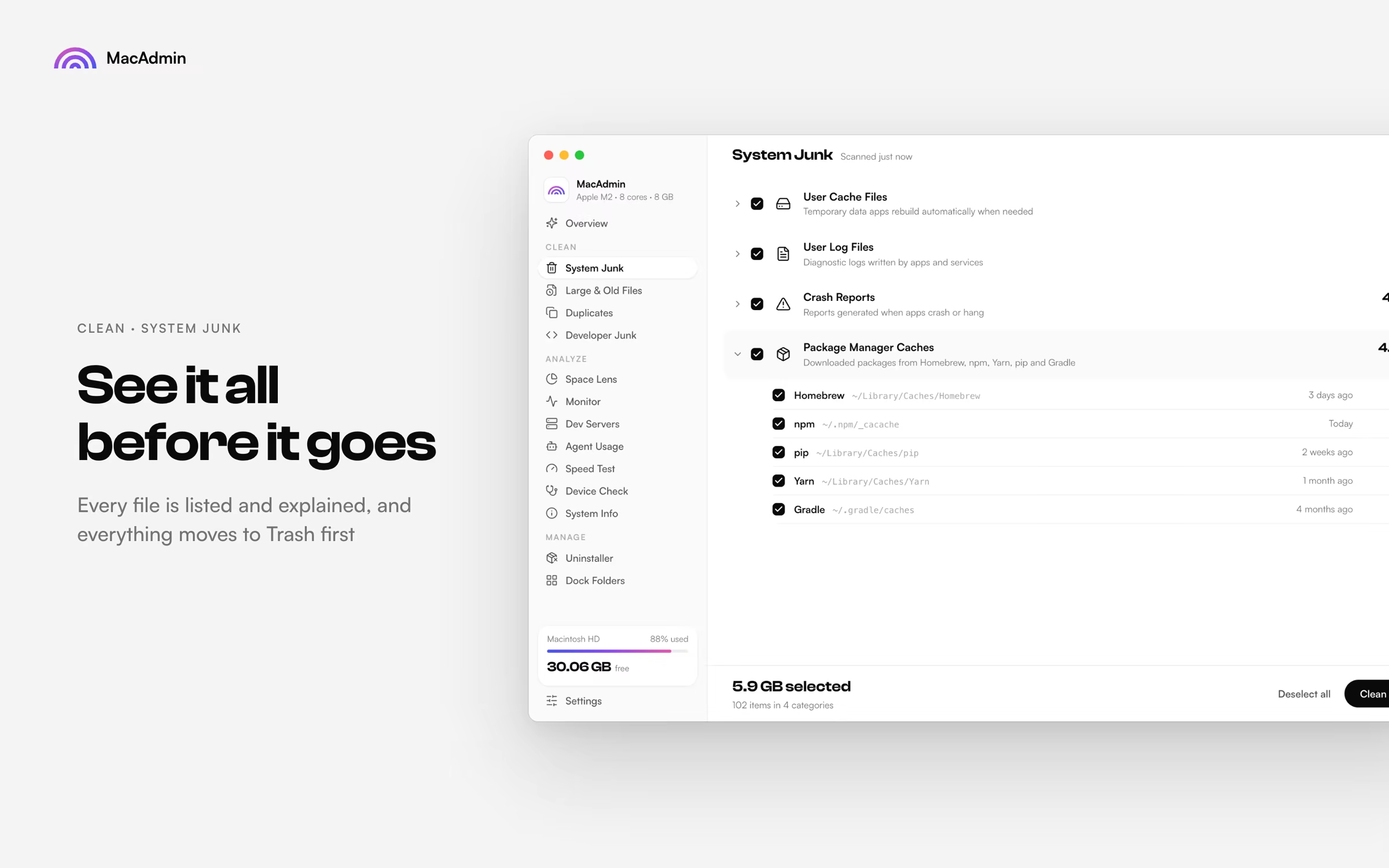
Caches, logs, crash reports and package manager leftovers, grouped by category, each with a note on what it is.

  • Every file is listed and explained
  • Homebrew, npm, pip, Yarn and Gradle caches, each with its path and age
  • Everything moves to the Trash first, so nothing is gone for good
System Junk: See it all before it goes. User caches, logs, crash reports and package manager caches, grouped and explained.

03 / 19

Large & Old Files

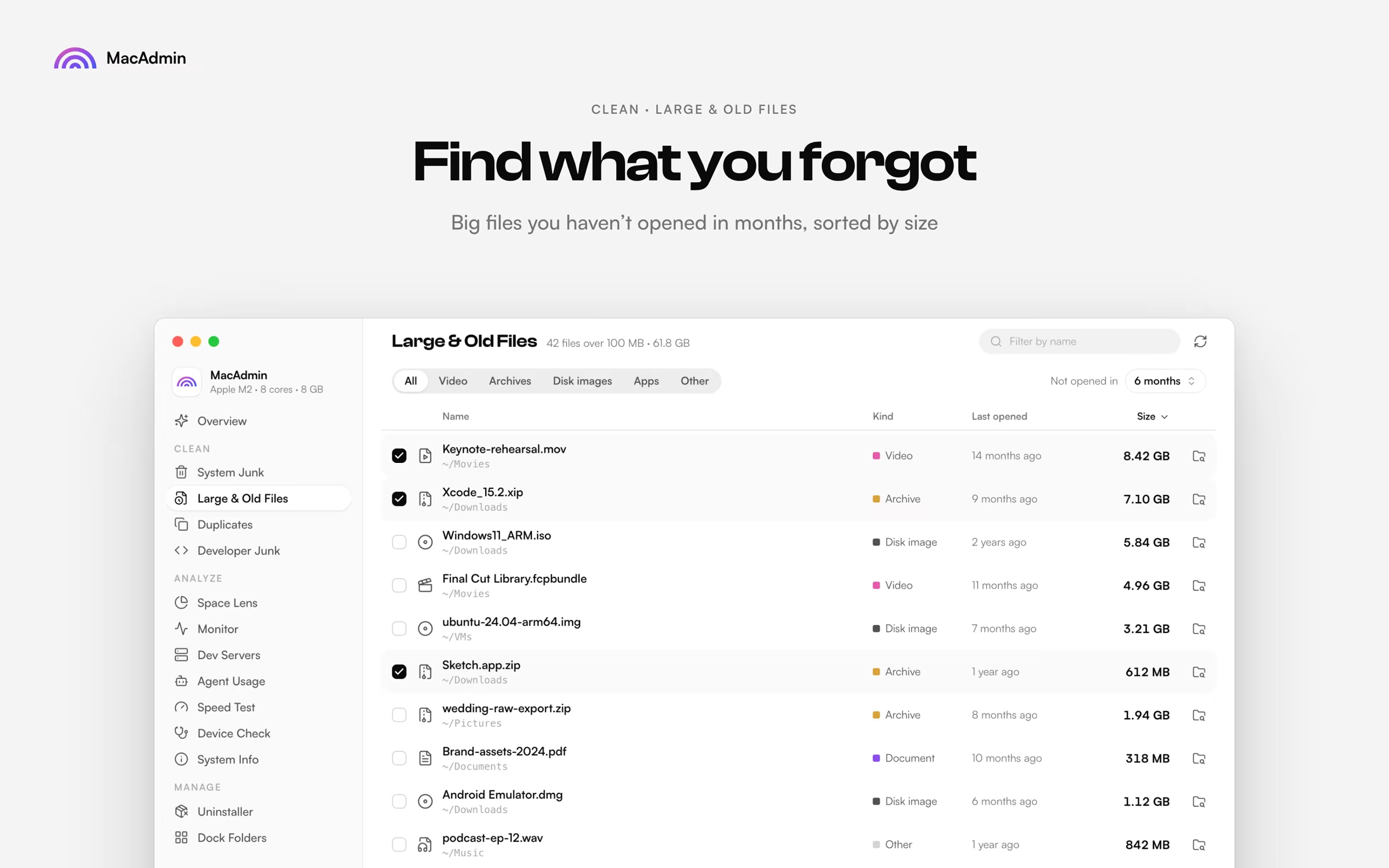
Big files you haven't opened in months, sorted by size, so the biggest wins come first.

  • Filter by video, archives, disk images and apps
  • Shows when each file was last opened
  • Set your own size and age thresholds
Large & Old Files: Find what you forgot. Big files you haven't opened in months, sorted by size.

04 / 19

Duplicates

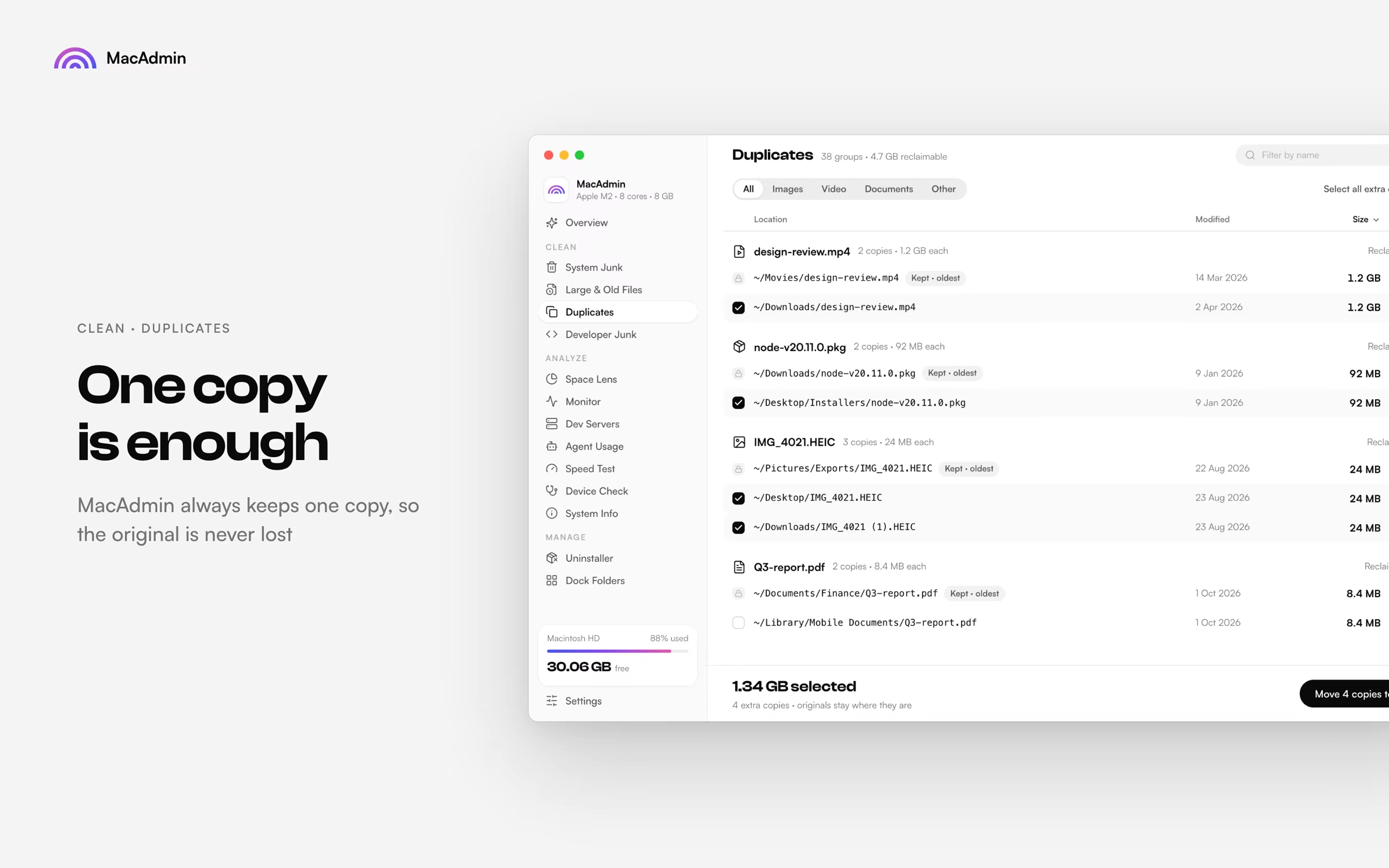
Finds identical files wherever they are, across images, videos and documents.

  • Always keeps one copy, so the original is never lost
  • Keeps the oldest copy by default
  • Shows every location before anything moves
Duplicates: One copy is enough. Groups of identical files with the original kept.

05 / 19

Developer Junk

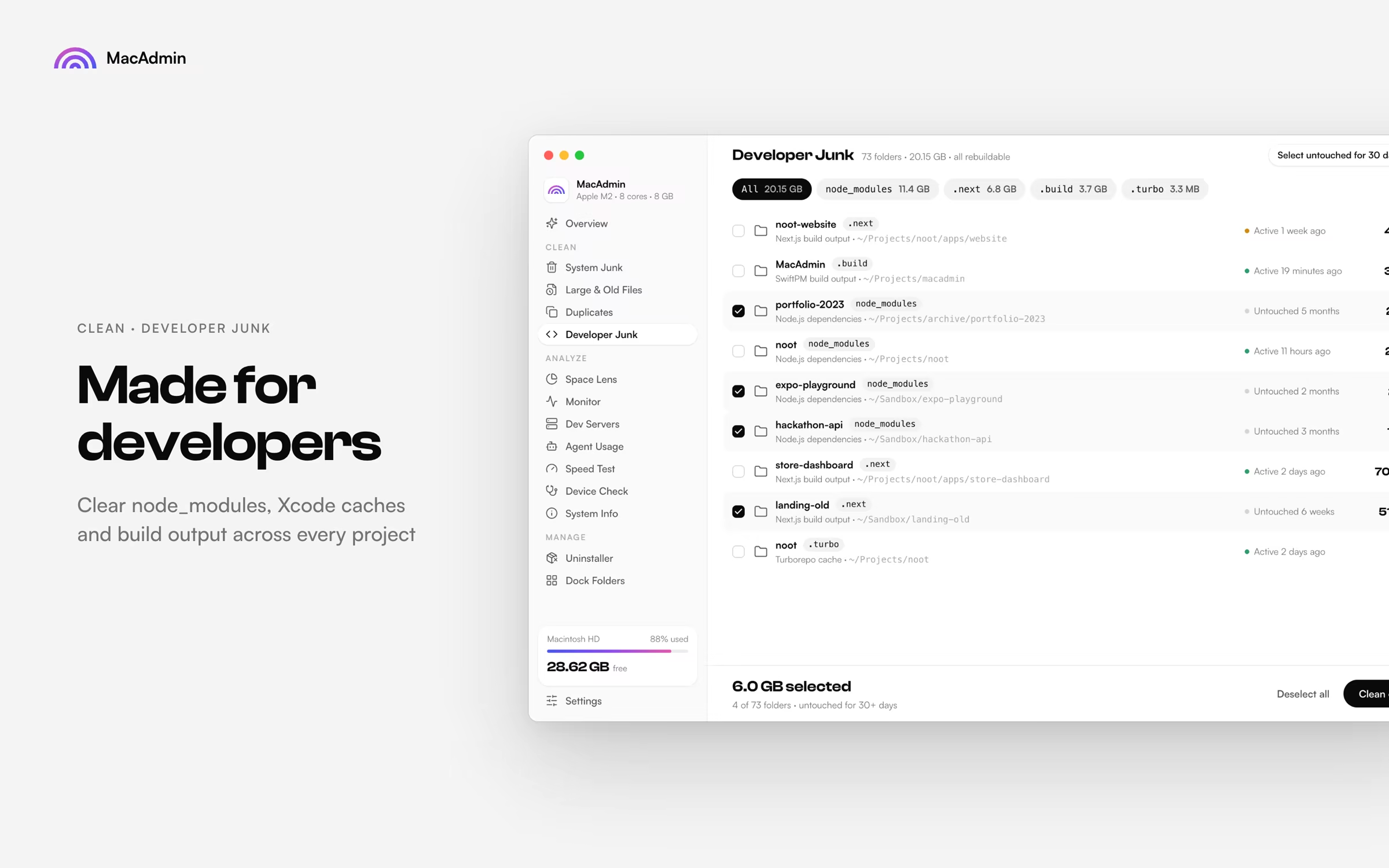
node_modules, Xcode caches and build output across every project on your Mac.

  • node_modules, .next, .build and .turbo folders, sized per project
  • Shows when each project was last active
  • Select everything untouched for 30 days in one click
Developer Junk: Made for developers. node_modules, Xcode caches and build output across every project.

02

Analyze

Understand your Mac: where the space went, what is slowing it down, and what it is made of.

06 / 19

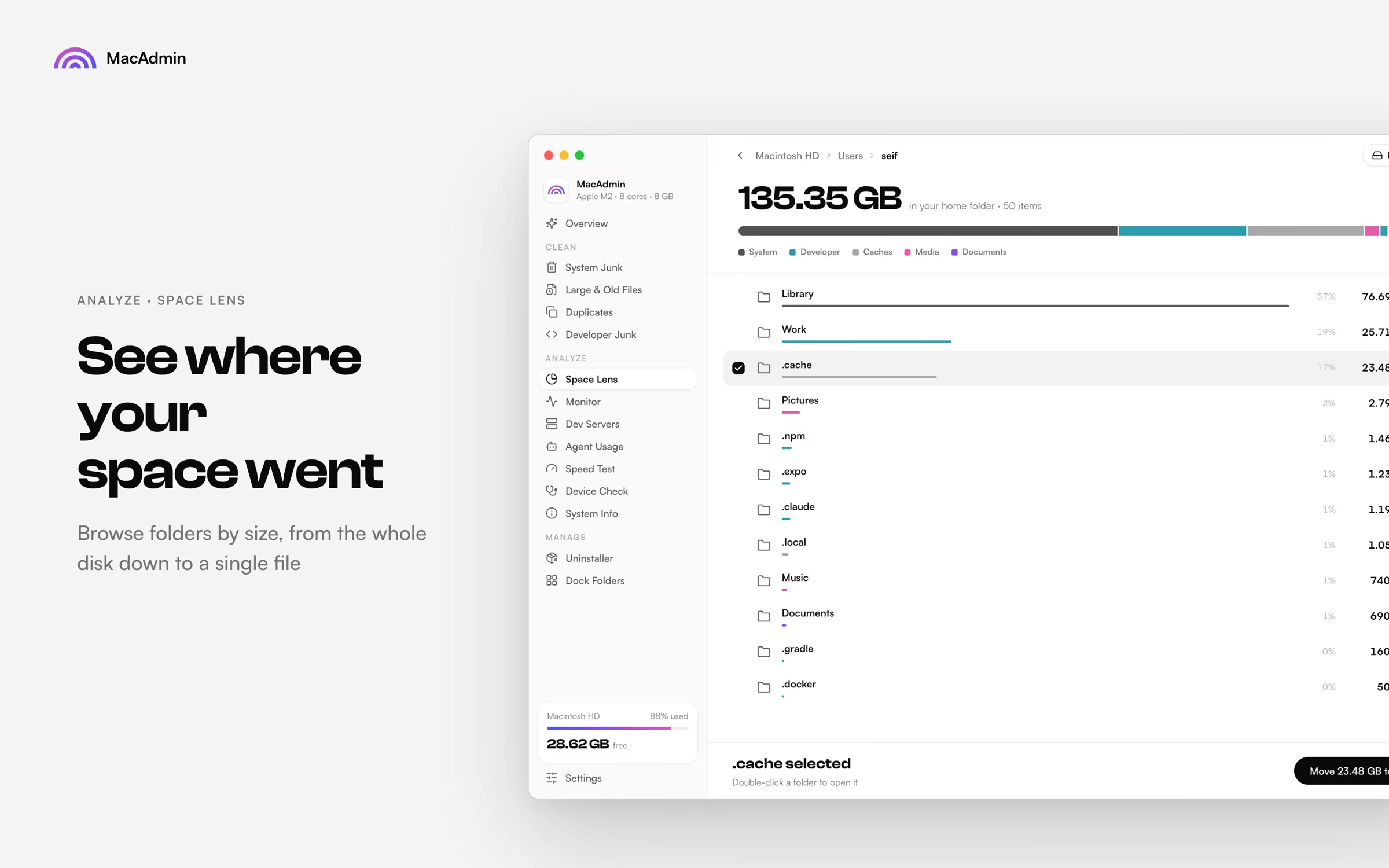
Space Lens

Browse folders by size, from the whole disk down to a single file.

  • Drill into any folder, with a breadcrumb back out
  • Each folder shows its share of the disk
  • Move a folder to the Trash straight from the list
Space Lens: See where your space went. Folders sorted by size, from the whole disk down to a single file.

07 / 19

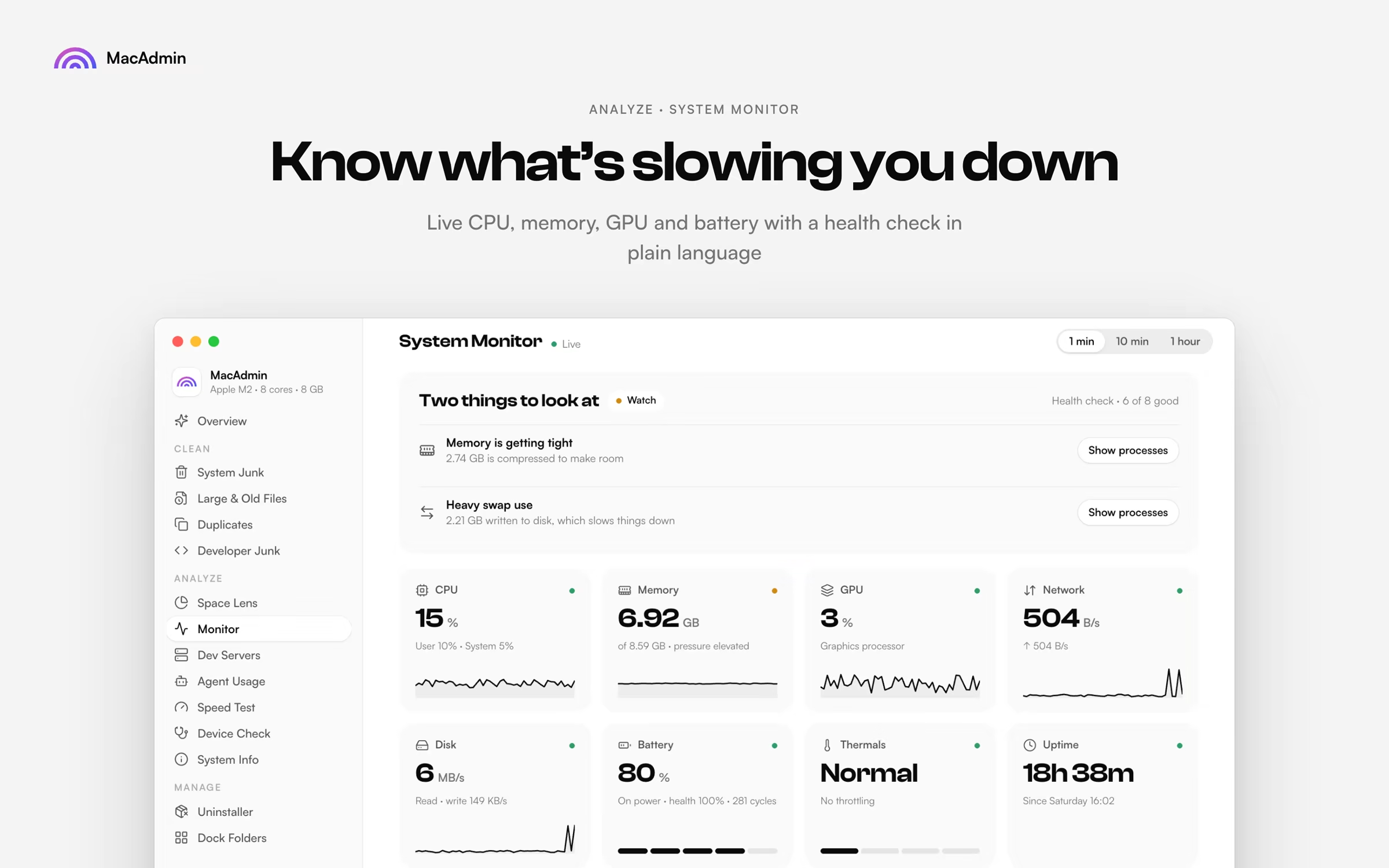
System Monitor

Live CPU, memory, GPU, network, disk and battery, with a health check written in plain language.

  • Calls out the few things worth looking at right now
  • Thermals and uptime alongside the usual graphs
  • One click to the processes behind each warning
System Monitor: Know what's slowing you down. Live CPU, memory, GPU and battery with a health check.

08 / 19

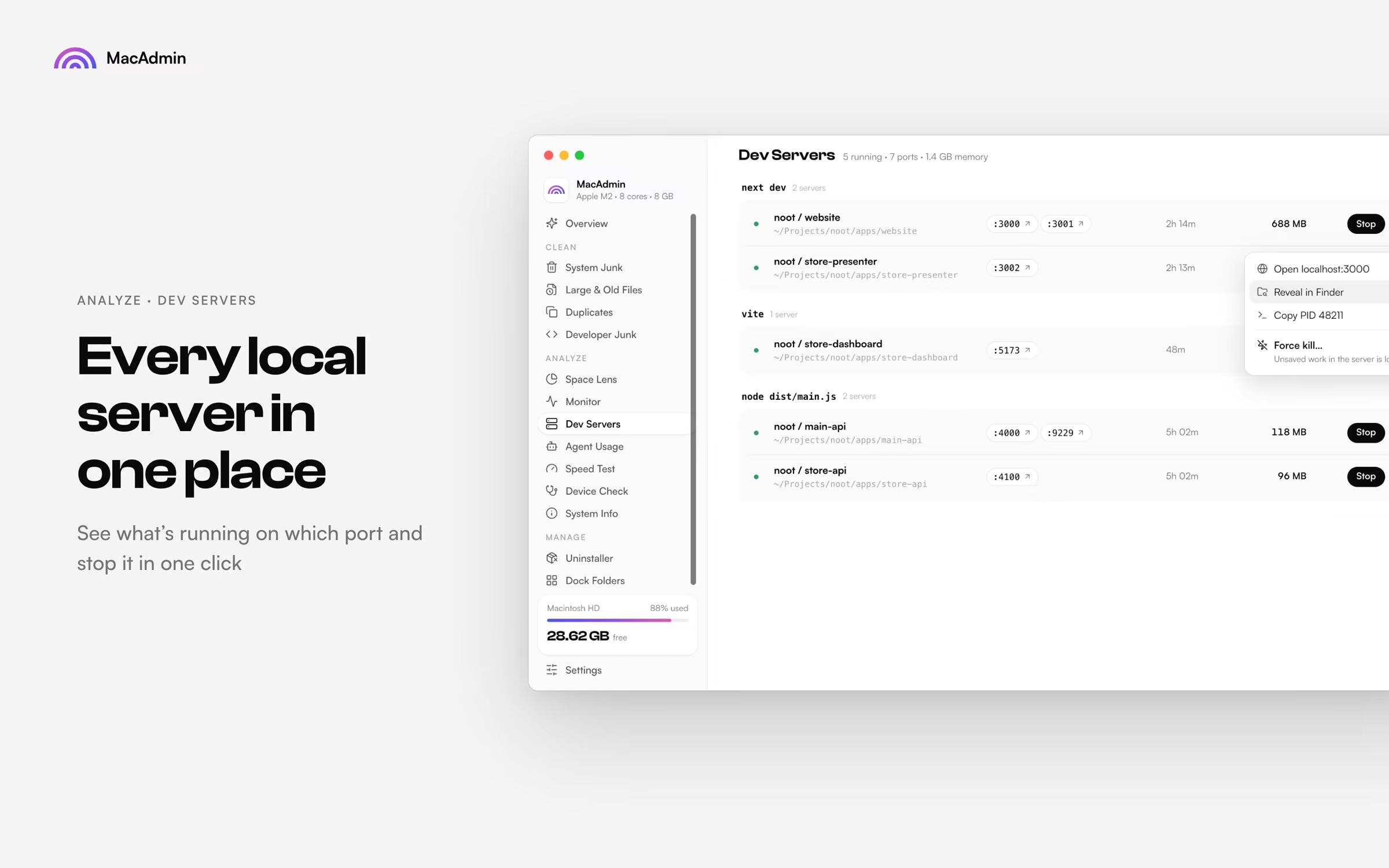
Dev Servers

See what's running, on which port and for which project, and stop it in one click.

  • Grouped by what started them: next dev, vite, node
  • Memory use and how long each has been running
  • Open it in the browser, reveal it in Finder, copy its PID or force kill
Dev Servers: Every local server in one place. What's running on which port, with a Stop button.

09 / 19

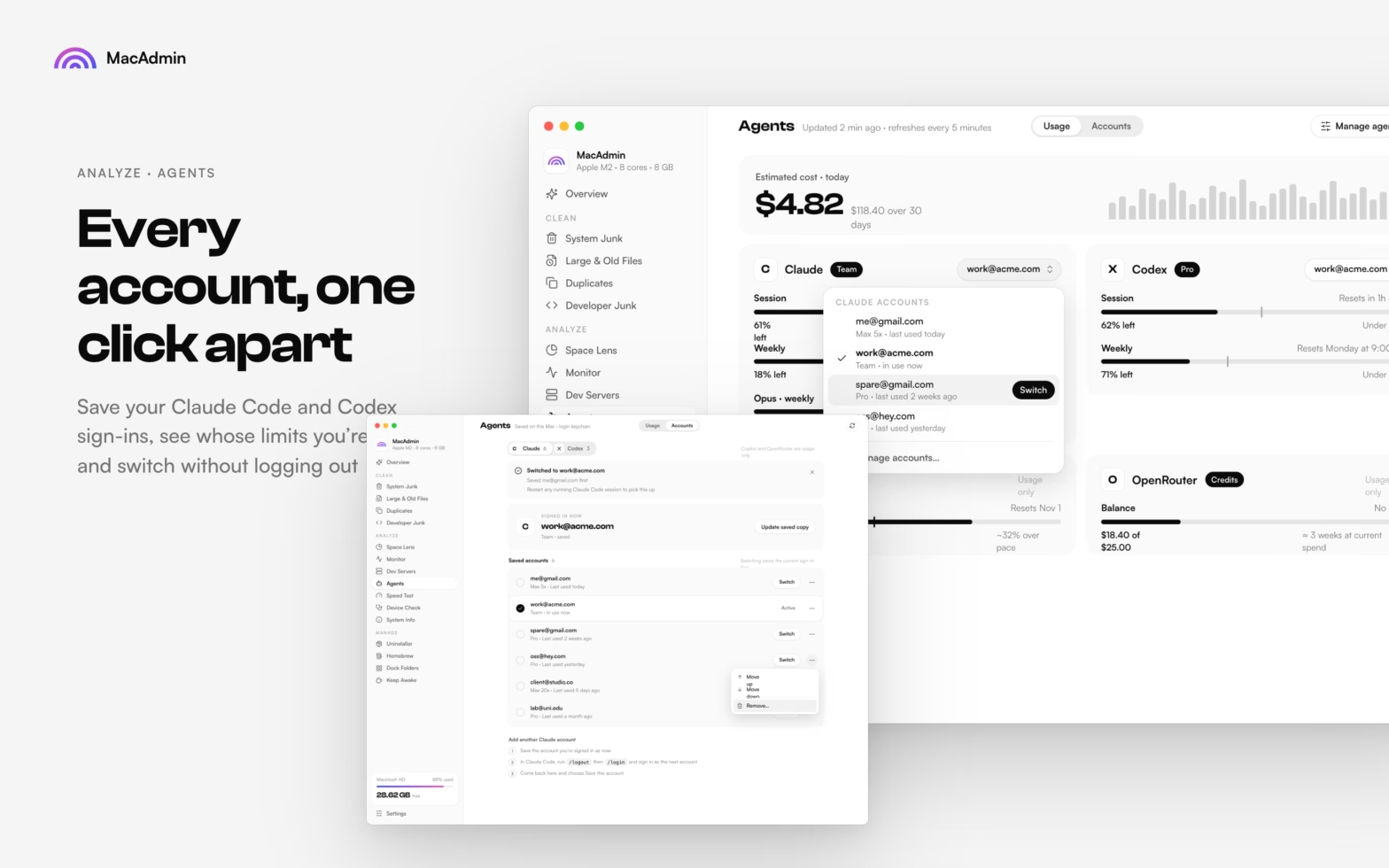
Agents

Claude, Codex, Copilot and OpenRouter usage on one screen, with Claude Code and Codex accounts you can switch in a click.

  • Usage tab: session and weekly limits, pace against your plan and an estimated cost, read from local logs
  • Accounts tab: save several Claude Code or Codex sign-ins and switch without logging out, from the list or from the account chip on each usage card
  • Switching asks before removing an account, and warns while Codex is still running so you can restart it
  • Saved accounts also appear in the menu bar, with a Switch button and Manage accounts
Agents: Every account, one click apart. The Usage tab with an account switcher and the Accounts tab with saved Claude Code and Codex sign-ins.

10 / 19

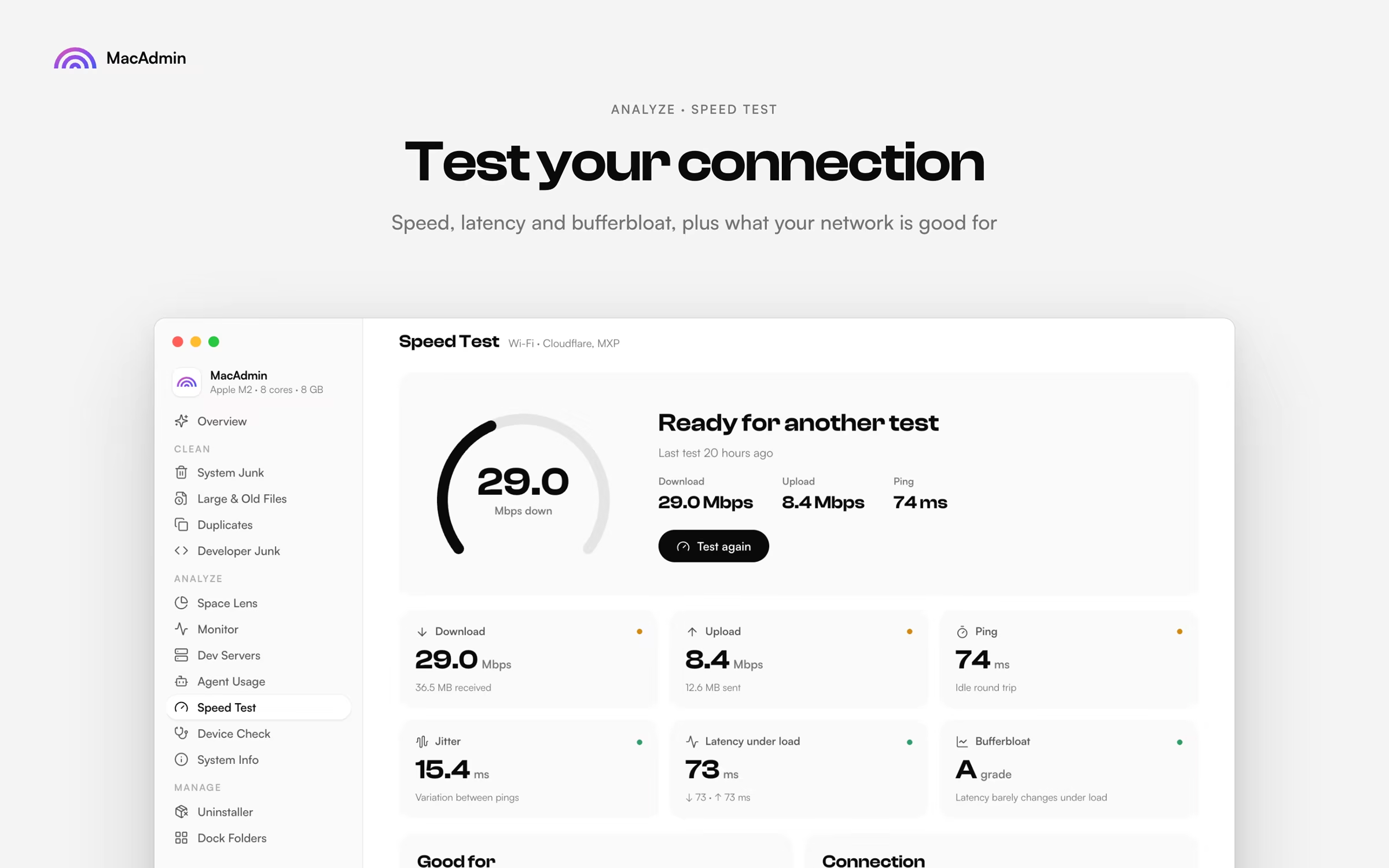
Speed Test

Download, upload, latency and bufferbloat, plus what your network is good for.

  • Jitter and latency under load, not just peak speed
  • A grade for bufferbloat
  • A plain list of what your connection is good for
Speed Test: Test your connection. Speed, latency and bufferbloat, plus what your network is good for.

11 / 19

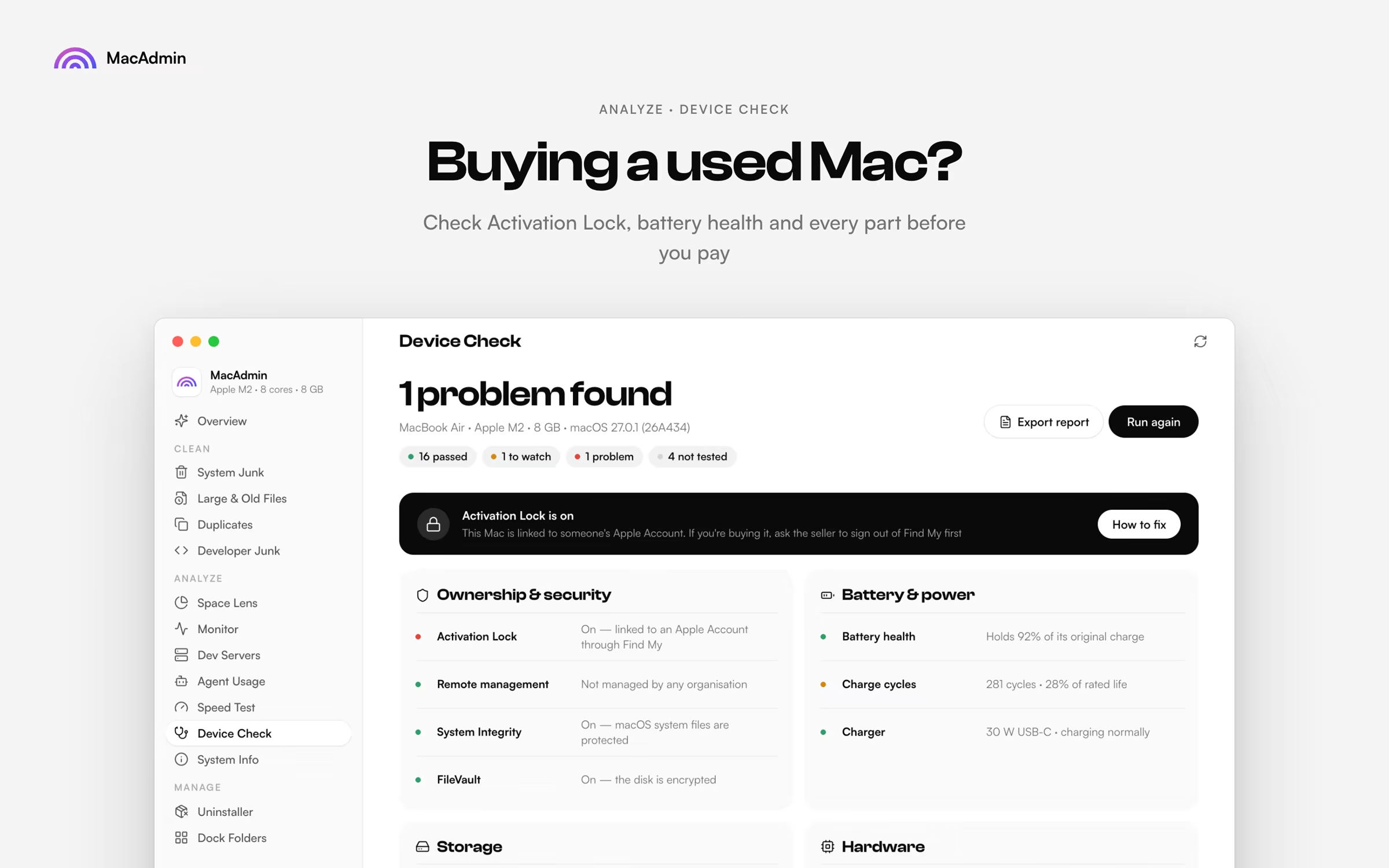
Device Check

Check Activation Lock, battery health and every part before you pay.

  • Ownership and security: Activation Lock, remote management, FileVault
  • Battery health, charge cycles and charger
  • Storage and hardware checks in the same pass, with an exportable report
Device Check: Buying a used Mac? Activation Lock, battery health and every part checked before you pay.

12 / 19

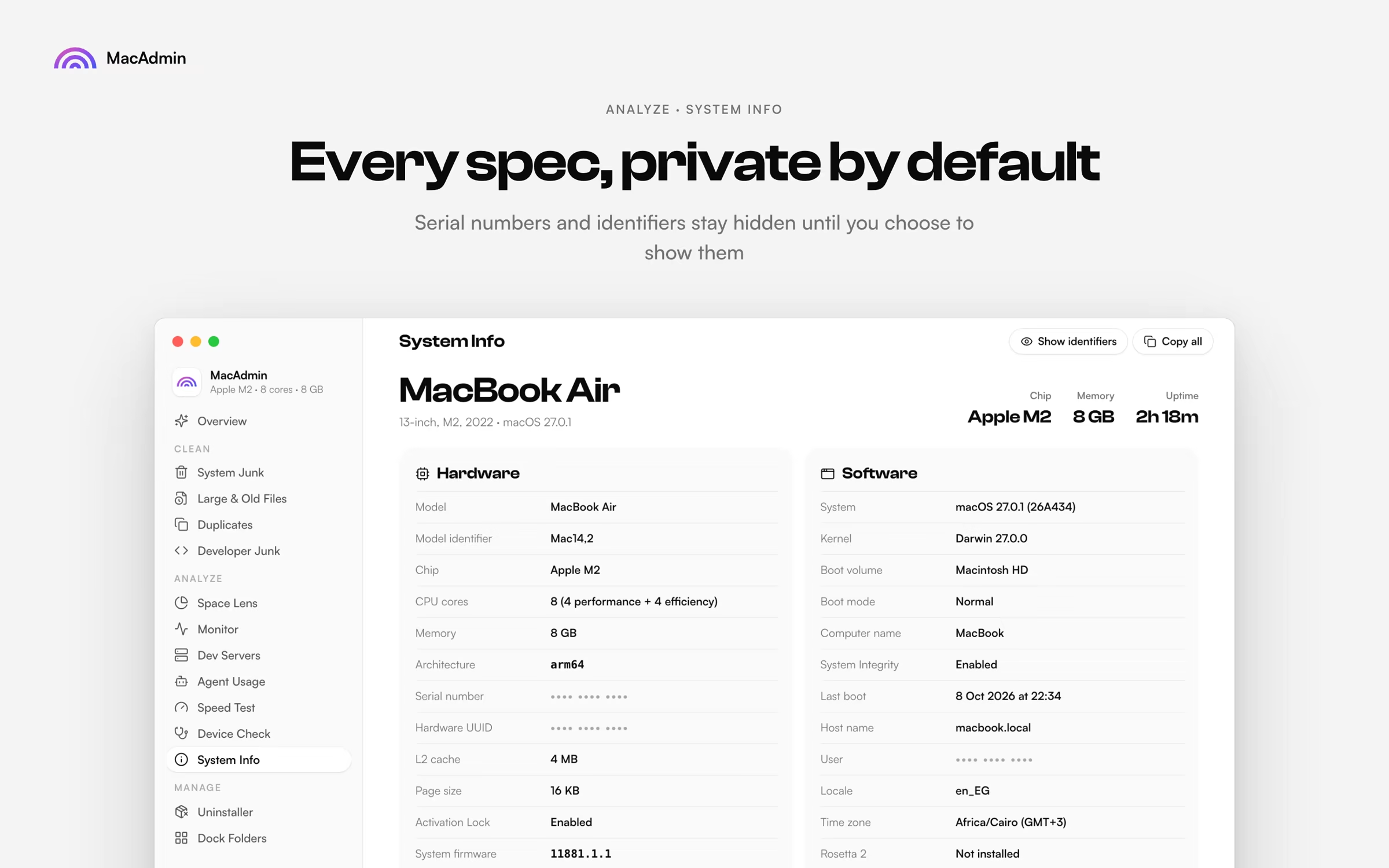
System Info

Every spec of your Mac on one screen, and any value copied with a click.

  • Hardware and software side by side
  • Serial numbers and identifiers stay hidden until you choose to show them
  • Copy everything at once for a support ticket
System Info: Every spec, private by default. Hardware and software details with identifiers hidden.

03

Manage

Small jobs macOS leaves to you, done properly.

13 / 19

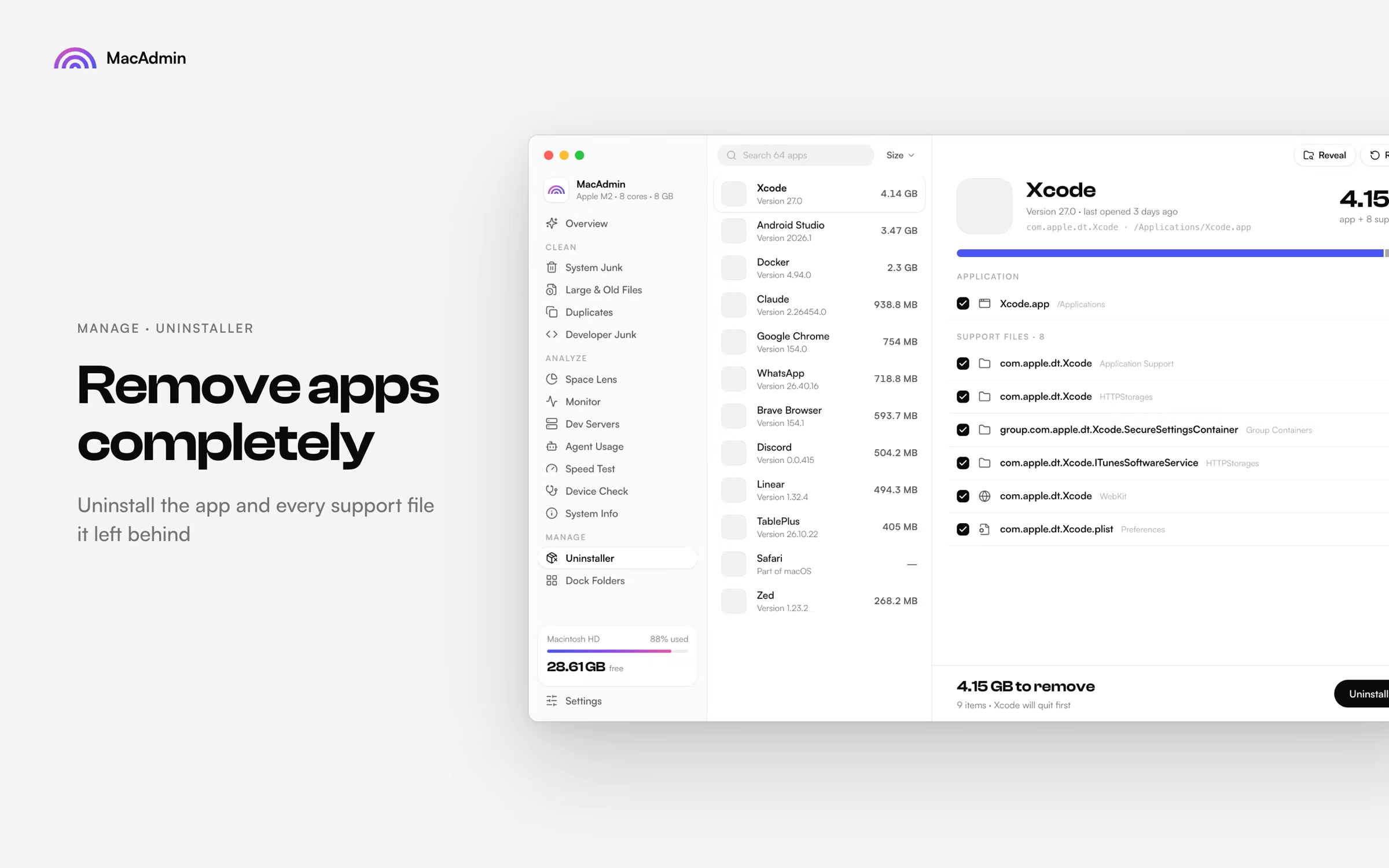
Uninstaller

Uninstall the app and every support file it left behind.

  • Finds application support files, preferences, caches and group containers
  • Shows exactly how much each app will free
  • Every app sorted by size, and searchable
Uninstaller: Remove apps completely. An app and every support file it left behind.

14 / 19

Homebrew

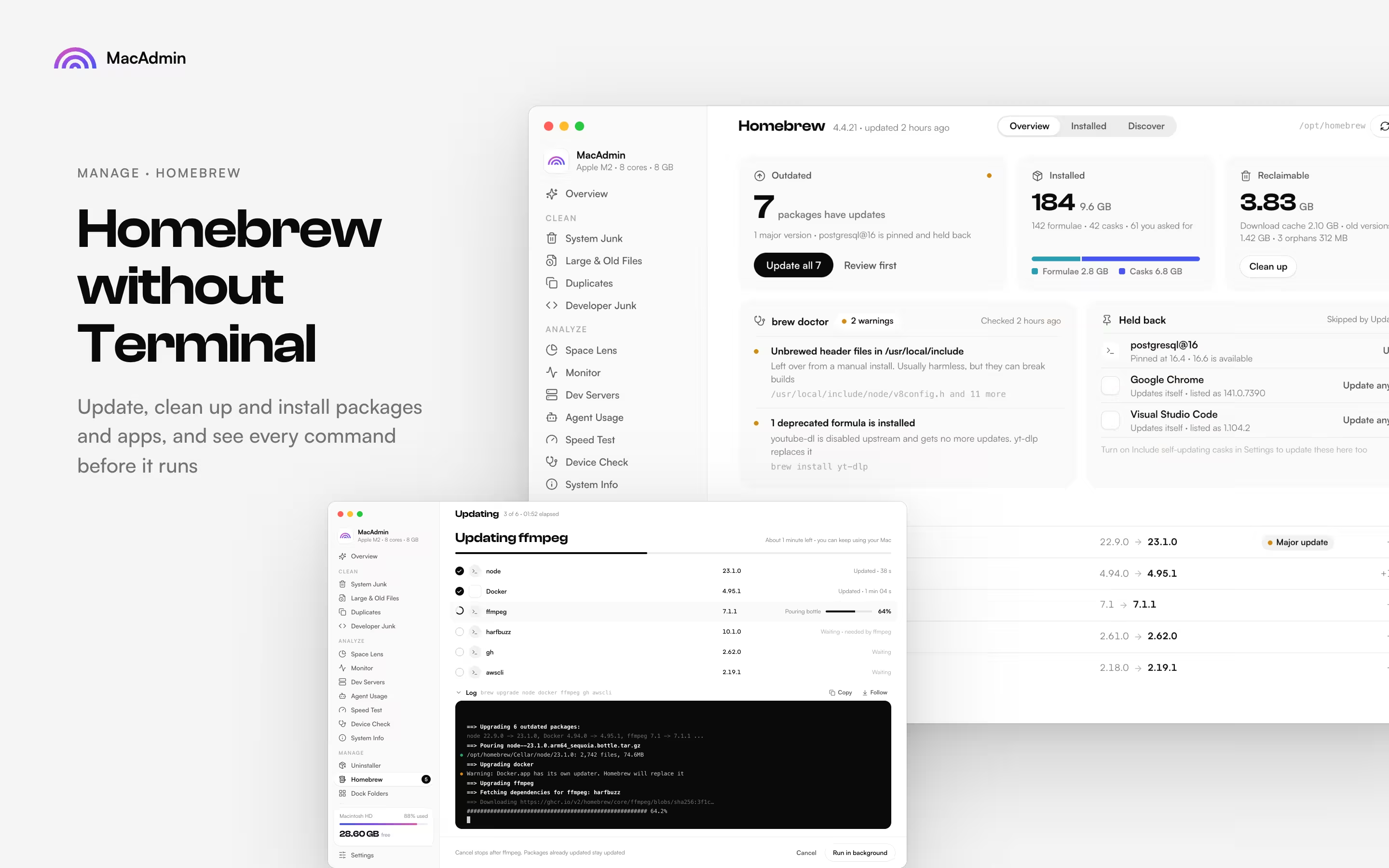
Update, clean up and install packages and apps, and see every command before it runs.

  • Outdated, installed and reclaimable at a glance, with Update all or Review first
  • brew doctor warnings explained, and pinned packages held back from updates
  • Browse Installed and Discover to add or remove formulae and casks
Homebrew: Homebrew without Terminal. Updates, brew doctor and held-back packages, with a live update log.

15 / 19

Dock Folders

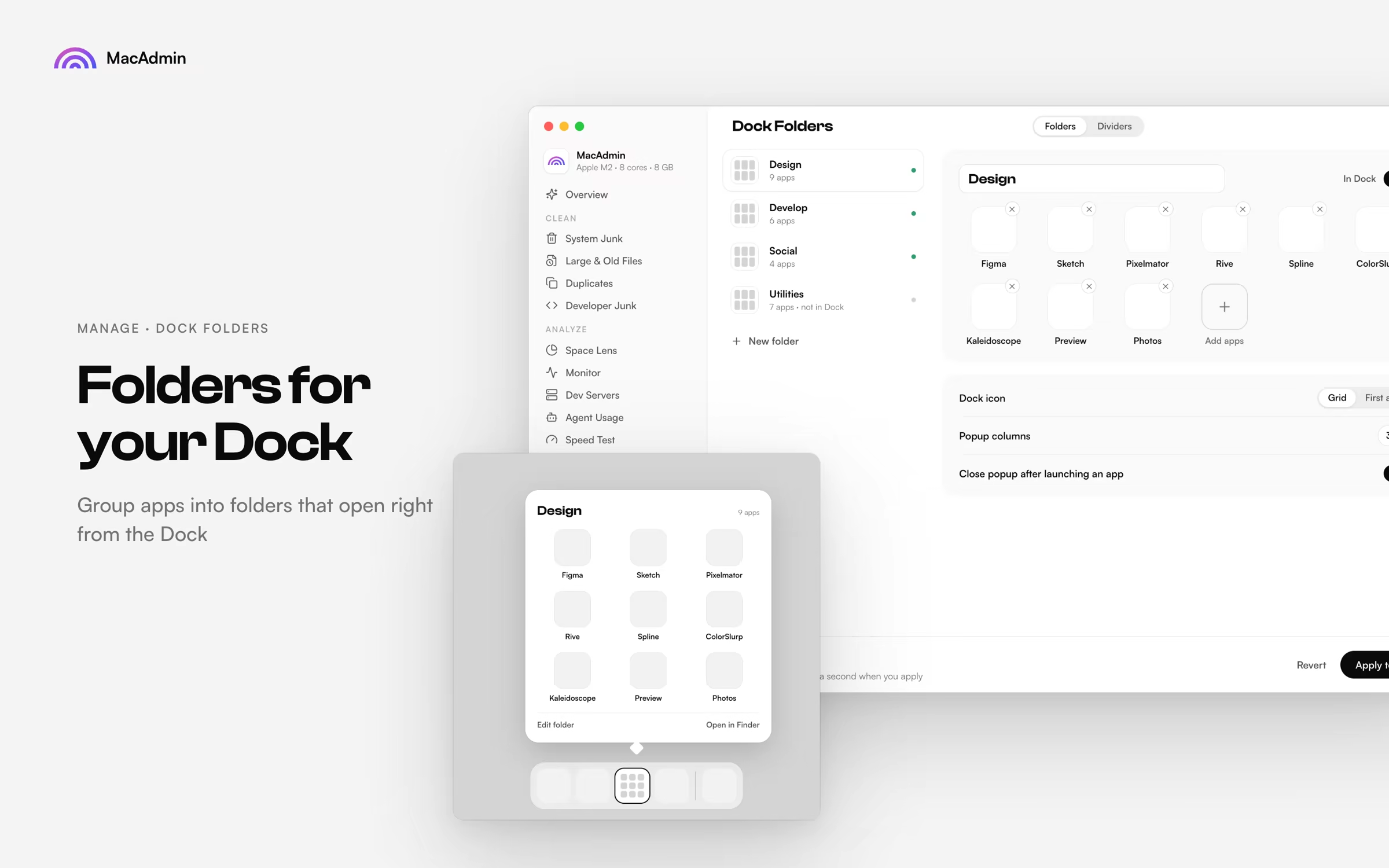
Group apps into folders that open right from the Dock.

  • Name and fill each folder, then apply
  • Choose the Dock icon style and popup columns
  • Add dividers between Dock apps too
Dock Folders: Folders for your Dock. Apps grouped into folders that open from the Dock.

16 / 19

Keep Awake

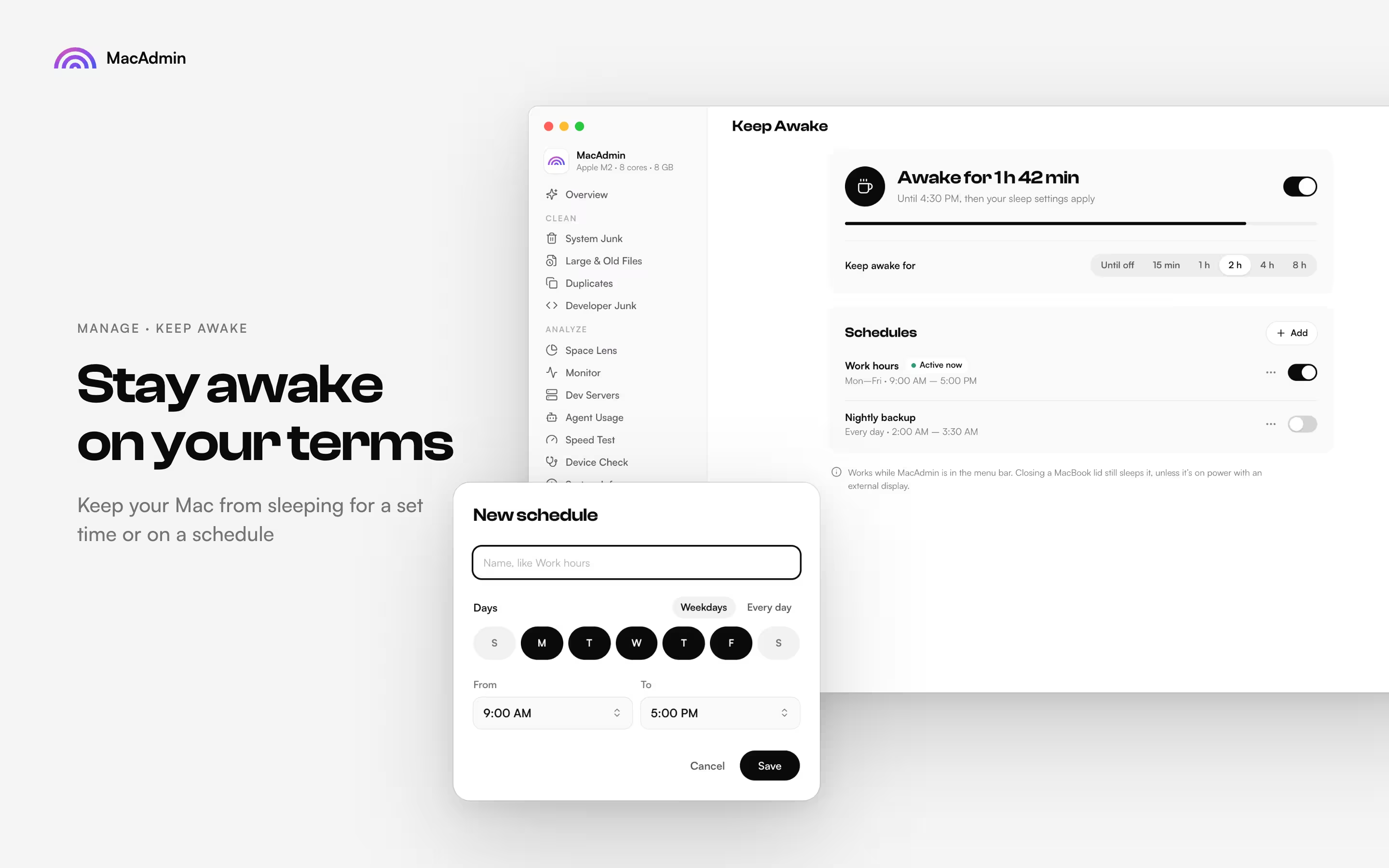
Keep your Mac from sleeping for a set time or on a schedule.

  • Pick Until off, 15 min, 1 h, 2 h, 4 h or 8 h, with a live countdown
  • Schedules by day and time, like Work hours on weekdays or a nightly backup
  • Works while MacAdmin is in the menu bar
Keep Awake: Stay awake on your terms. A timer with a live countdown and a New schedule sheet for days and times.

17 / 19

Keyboard Cleaning

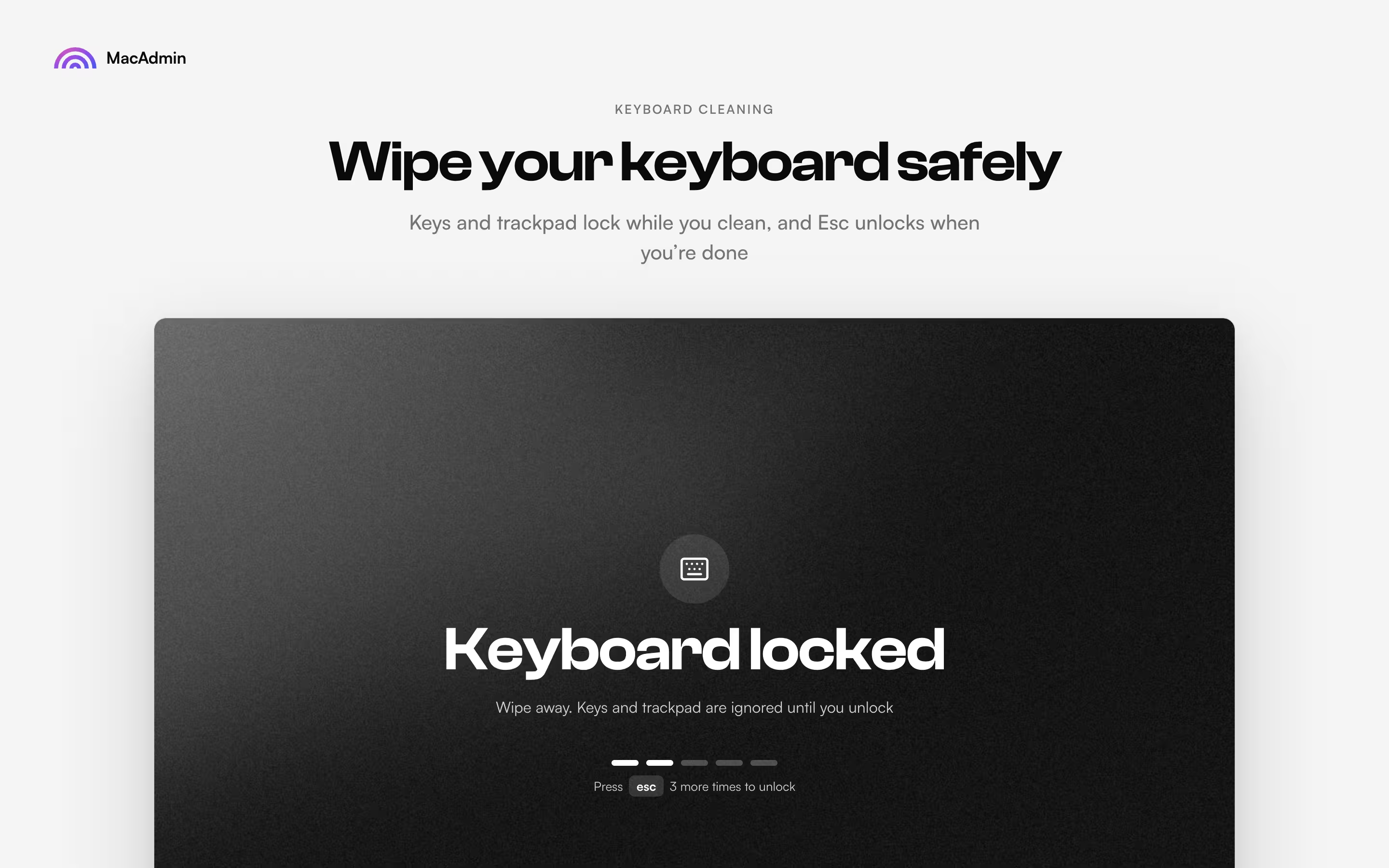
Keys and trackpad lock while you clean, and Esc unlocks when you are done.

  • Nothing you press reaches an app
  • Press Esc a few times in a row to unlock
  • Start it from the Overview
Keyboard Cleaning: Wipe your keyboard safely. The keyboard locked screen with Esc to unlock.

04

Everywhere

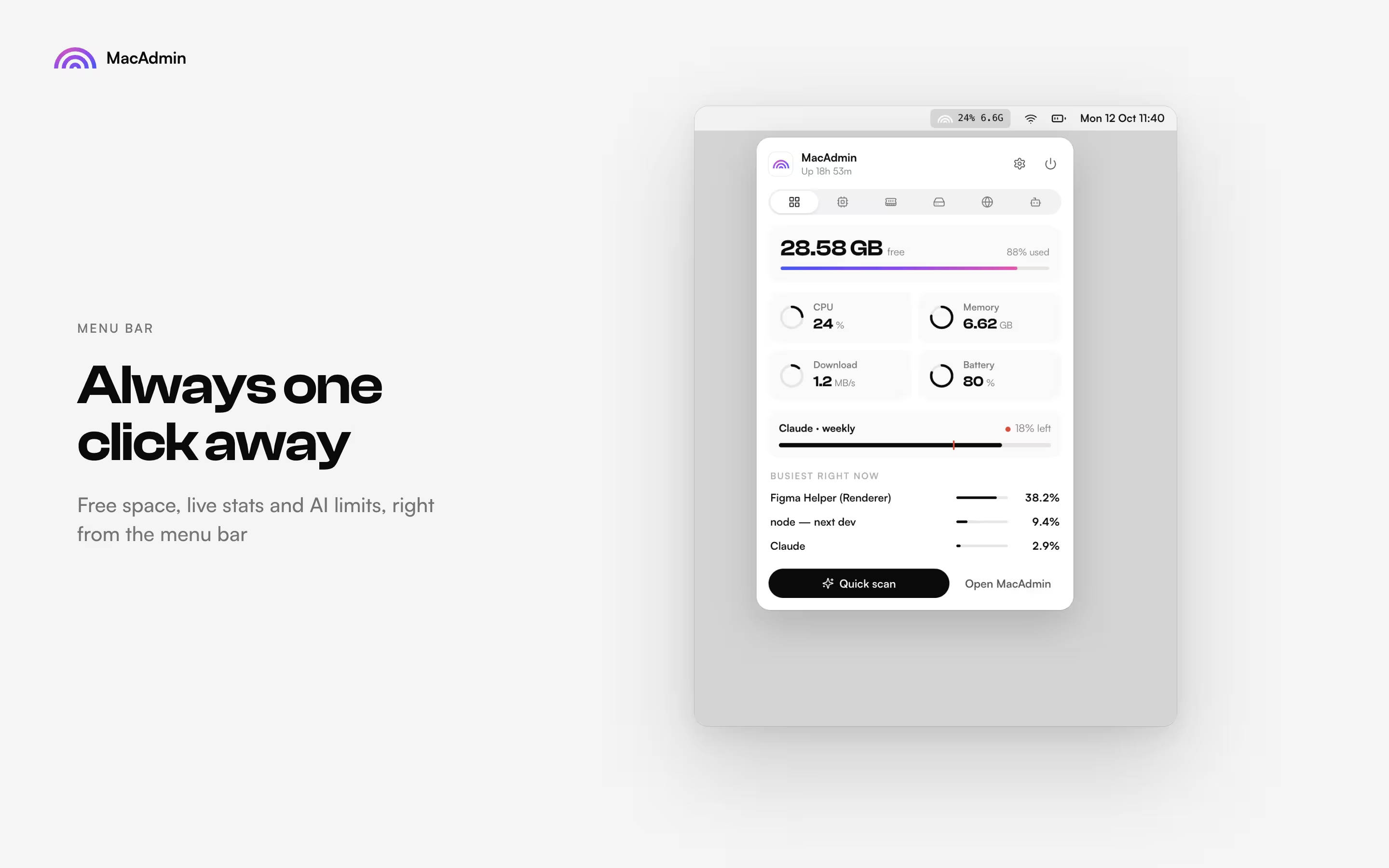
MacAdmin reaches past its own window, into the menu bar and the Finder.

19 / 19

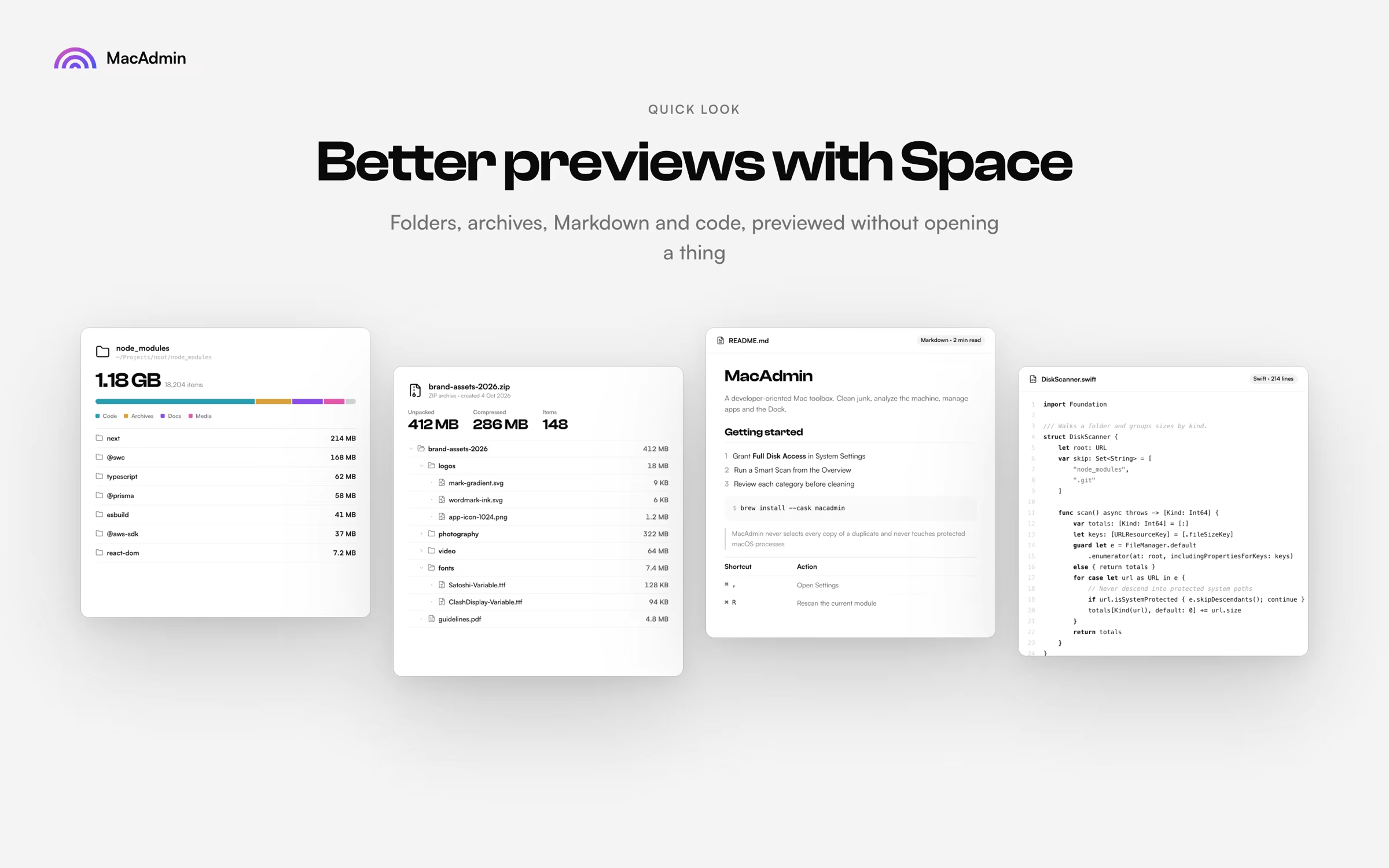
Quick Look

Folders, archives, Markdown and code, previewed without opening a thing.

  • Folder sizes broken down by kind
  • Archive contents with packed and unpacked sizes
  • Rendered Markdown and highlighted source code
Quick Look: Better previews with Space. Previews of a folder, a zip archive, a README and a Swift file.

Try it here

The Dock switches tools, the traffic lights work, and the menu bar extra opens from the menu bar.

MacAdmin
MacAdmin overview: 5.9 GB ready to clean, disk usage by category and a 30-day space timeline with a forecast.

Overview. Pick a tool in the Dock, or try the menu bar.

Careful with your files

Trash first
Cleaning moves files to the Trash. Nothing is deleted for good until you empty it.
One copy stays
Duplicates never selects every copy of a file, so the original is always kept.
System files are off limits
Scans skip protected macOS paths, so cleaning never reaches into the system itself.
Private by default
Agent usage is read from logs on your Mac, saved accounts stay in your login keychain, and serial numbers stay hidden until you show them.

MacAdmin

19 tools for macOS. Questions first? info@urax.org

$15Paid once. No subscription.

7-day free trial, no card needed.